Key Surveillance Systems
Installation & Setup Manual
Field guide for CCTV, NVR, access control, and network deployments — manufacturer camera hubs, ExacqVision, Avycon, Kantech, and more. This page is the free preview: the overview, camera types, a full sample chapter and a pre-install checklist. The complete field guide is available as a PDF.
About this manual
Written for installation teams with hands-on experience. It covers system re-imaging, camera integration, remote viewing, troubleshooting, cable estimation, and vendor-specific workflows for reliable surveillance deployments.
- Video — dome, bullet, PTZ, IP, and wireless cameras
- Recorders — ExacqVision, Avycon, manufacturer hubs
- Access — Kantech / EntraPass controllers and credentials
- Design — network basics, runoffs, and floor-plan wire maps
End the Data Broker Loophole
Close the data broker loophole that enables warrantless sale of citizen data, foreign election interference claims, and government pressure on journalists. Protect Fourth Amendment rights.
Camera Types
Dome Cameras (Indoor)
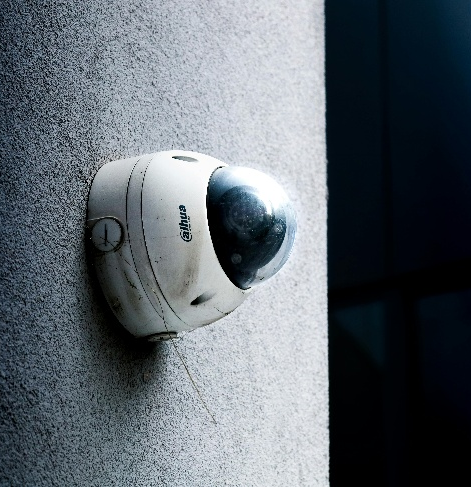
Dome cameras are named for their dome-shaped housing, making them discreet and less noticeable. These cameras are typically mounted on ceilings or walls and offer a wide-angle view, ideal for monitoring large areas such as retail stores, offices, and warehouses.
Bullet Cameras
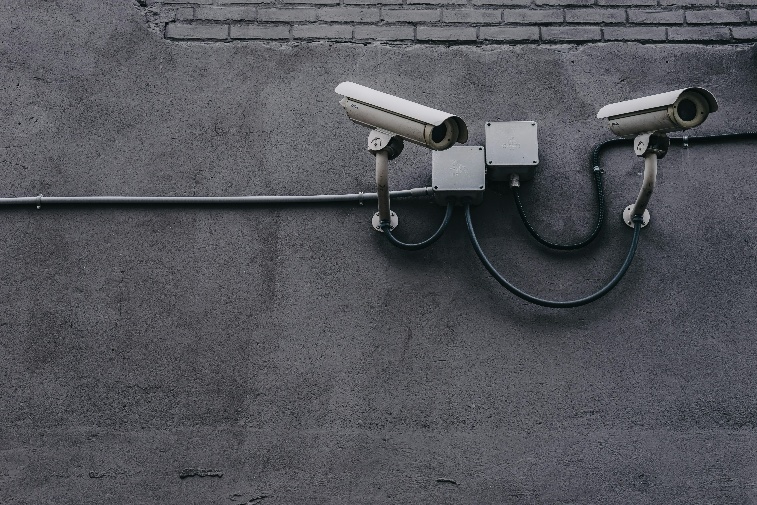
Bullet cameras, also known as cylindrical cameras, are characterized by their long and tapered shape. They are often used outdoors due to their weatherproof design.
PTZ Cameras
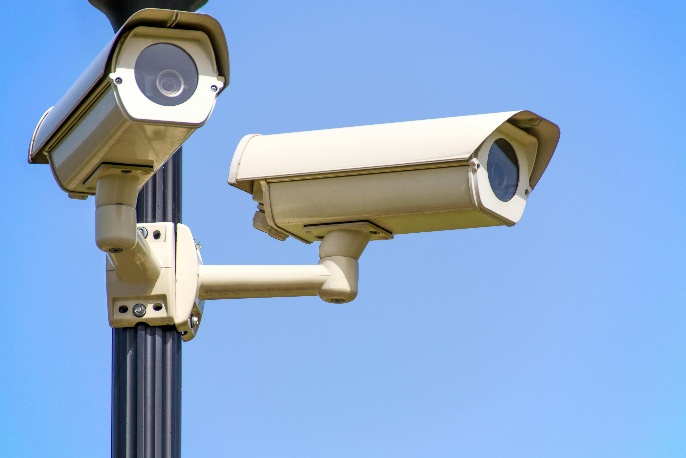
Pan-Tilt-Zoom (PTZ) cameras are highly versatile and capable of covering large areas with a single device. These cameras can pan, tilt, and zoom, allowing for comprehensive surveillance.
Wireless Cameras
Wireless cameras transmit video signals over Wi-Fi, eliminating the need for extensive cabling. They are easy to install and offer flexibility in placement.
IP Cameras
Internet Protocol (IP) cameras send and receive data over a network, enabling remote viewing and monitoring from anywhere with an internet connection. They offer high-resolution video and advanced features such as motion detection, video analytics, and cloud storage.
Each type serves distinct security needs, ranging from home monitoring to business surveillance.
Basic operations such as powering on/off, using the viewfinder, and the LCD screen.
ISO stands for International Organization for Standardization, indicating the camera's sensitivity to light. Utilize a low ISO in bright conditions and a high ISO in dim lighting.
Aperture refers to the opening in the camera lens through which light passes, measured in F-stops. A lower F-stop means more light is let in, while a higher F-stop is ideal for bright conditions and sharper focus.
A practical, step-by-step guide for camera installation teams working with manufacturer camera hubs, ExacqVision and Avycon Systems. This manual covers essential procedures including system re-imaging, camera integration, remote viewing setup, troubleshooting, and advanced software features. Designed for technicians with hands-on experience, it delivers clear instructions, best practices, and quick-reference workflows to ensure reliable, professional surveillance deployments in any environment.
Free sample chapter: How to Re-Image an ExacqVision NVR
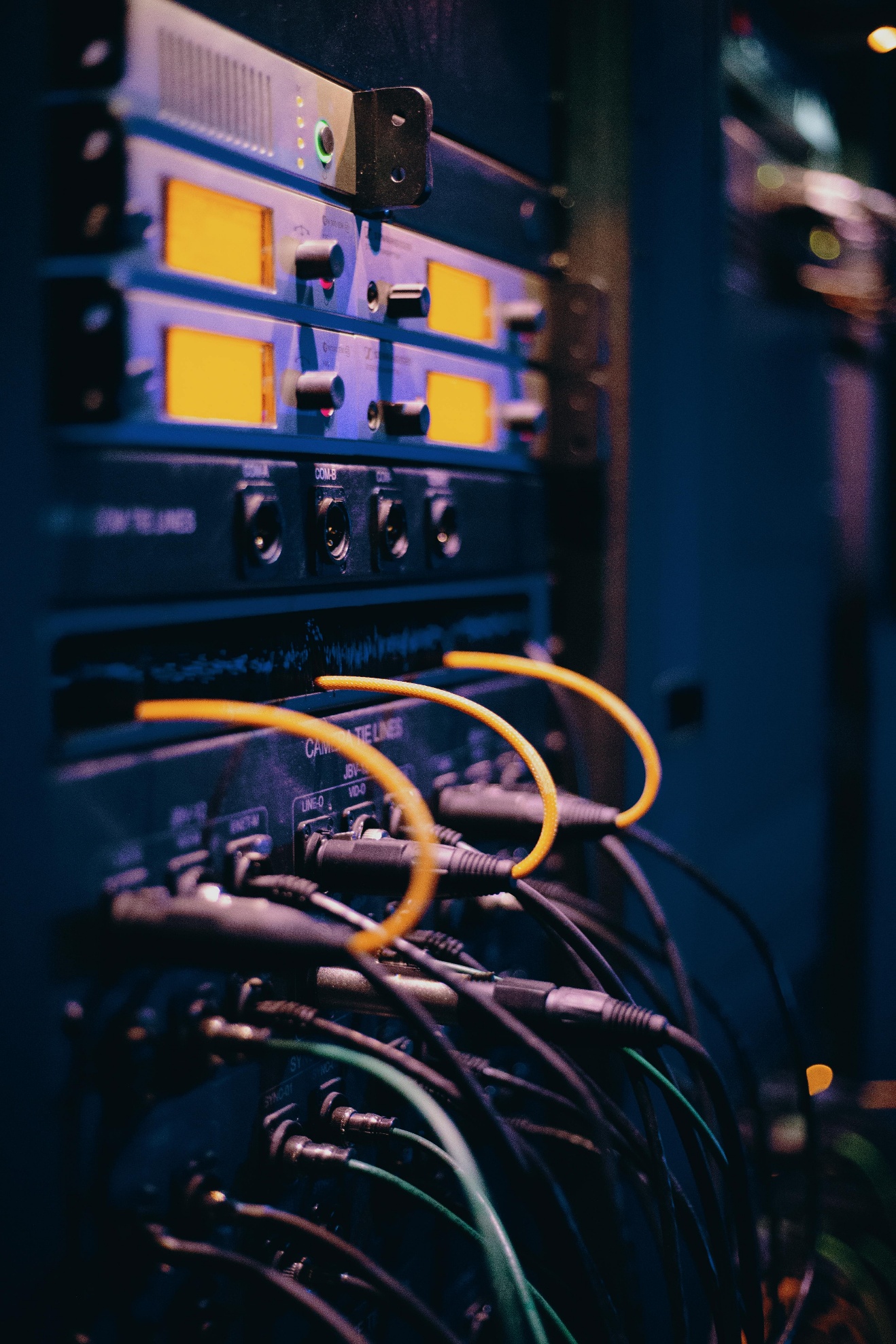
Imagine transforming your ExacqVision NVR back to its pristine factory state, ready to tackle new challenges or resolve stubborn software issues. Re-imaging your NVR is like hitting the reset button, giving it a fresh start. But remember, this process wipes out all existing data, so make sure to back up your important files before diving in. Let's get started on this exciting journey to restart your NVR!
Step-by-Step Process
- Power off the NVR and connect a monitor, keyboard, and mouse.
- Insert the ExacqVision recovery USB drive or DVD.
- Power on the NVR and enter the BIOS/boot menu (usually by pressing F12 or Esc).
- Select the USB/DVD as the boot device.
- Follow the on-screen prompts to start the imaging process.
- Choose the correct image version as required.
- Confirm that you wish to proceed, acknowledging that all data will be erased.
- Wait for the process to complete; the NVR will reboot automatically.
- Remove the USB/DVD and allow the system to boot into the ExacqVision OS.
- Complete the initial setup, including network configuration and license activation.
- Restore configuration and video backups as needed.
Quick checklist: before you install a camera hub
From the manufacturer hub chapter. The full guide continues with power-up, commissioning, network configuration, analytics, evidence export, QA and troubleshooting.
- Confirm work order, camera schedule, and floor plans are in the service ticket.
- Verify PoE switch ports, patch panels, and power outlets are live.
- Obtain LAN IP range, DNS, gateway, and VLAN tags from customer IT.
- Confirm outbound ports 443 (TCP) and 554 (TCP/UDP) are permitted to the central-station monitoring platform.
- Record camera MAC addresses for asset tracking.
- Have a laptop with a current web browser, USB-C Ethernet adapter, and Cat-5e jumpers.
What's in the full field guide
The preview above is a small part of the manual. The full field guide covers:
- Internet of ThingsAll of this relies on strong connections; In short
- Network Fundamentals
- Adding a New Camera
- Replacing a Camera
- Avycon NVRAvycon CVMS 2.0: Playback, Backup, and Resource Management
- Avycon Resource Management
- Remote Viewing
- Manufacturer Hub Installation & Configuration Guide1. Purpose & Scope; 2. Pre-Installation Checklist; 3. Unboxing & Power-Up; 4. Commissioning & Authentication; 5. Network Configuration; 6. Adding Cameras; 7. Alert & Analytics Configuration; 8. Clip Management & Evidence Export; 9. Central-Station Monitoring Integration; 10. Maintenance & Support; 11. Post-Installation QA Checklist; 12. Troubleshooting Quick Reference
- KamTech Tutorials30 step-by-step procedures, including Entrapass GoPass Mobile Credentials Training: Programming and Use, Replacing lithium battery on KT 1 controller, Kantech Onboard Guide
- Gentec Vendor Training — CCTV, Security, and Alarm SystemsCCTV and Video Surveillance Systems; Access Control Systems; Alarm and Intrusion Detection; Automated License Plate Recognition (ALPR); Unified Security Platform: Security Center; Popular Gentec Products Summary Table
- Avigilon Vendor Training — Newest CCTV, Security, and Surveillance ProductsCCTV and Video Surveillance Systems; Cloud-Native Security Solutions; Unified Security Management; Advanced Video Analytics; Access Control and Video Intercom; Popular Avigilon Products Summary Table
- Runoffs and Cable Estimation
- Floor Plan Wire RunsDesigning Wire Maps; Using AI to Calculate Distances; Room Area & Wiring Requirements
Get the full field guide
The complete manual as a PDF, with every chapter, diagram, wiring table and troubleshooting reference in one place. If you'd rather have help with your own system, the consult includes the guide.
- Pay with Cash App to $samiamcastillo. Cash App is the only payment method.
- Put your email address in the Cash App note.
- I'll email your PDF, or set up your consult, after I see the payment.
Questions first? Email ExamPATutor@gmail.com.